Local AI Chatbot Tools: The Top 10 Compared
Compare the best local AI chatbot tools for privacy, hardware needs, setup, and features. Find the right option for running models on your own machine.
You have a folder of documents you'd rather not upload. Client contracts, medical notes, a codebase under an NDA, a stack of PDFs you need to search. You want to ask questions about them the way you'd ask a search engine, and you want the answers to stay on your machine.
That's what a local AI chatbot does. The model runs on your own computer instead of a provider's servers, so prompts and replies don't travel to a third party. What it doesn't do is run on anything. A local AI chatbot needs three things from your hardware: enough RAM or video memory to hold the model, a GPU if you want answers at conversational speed, and a model small enough to fit what's left after the operating system takes its share.
This list is grouped by setup type rather than ranked. Some tools get you to a chat window fastest. Others are built for private documents, for code, or for running a shared service on your own network. Every description comes from the tool's own website, no tool paid to be included, and none of the picks claim to be the best at everything.
Table of Contents
- 1. LM Studio
- 2. Ollama
- 3. GPT4All
- 4. Jan
- 5. AnythingLLM
- 6. Open WebUI
- 7. LocalAI
- 8. llamafile
- 9. Msty Studio
- 10. Ollama + Open WebUI
- Local AI chatbot tools at a glance
- Choosing Your Local AI Chatbot Setup
1. LM Studio
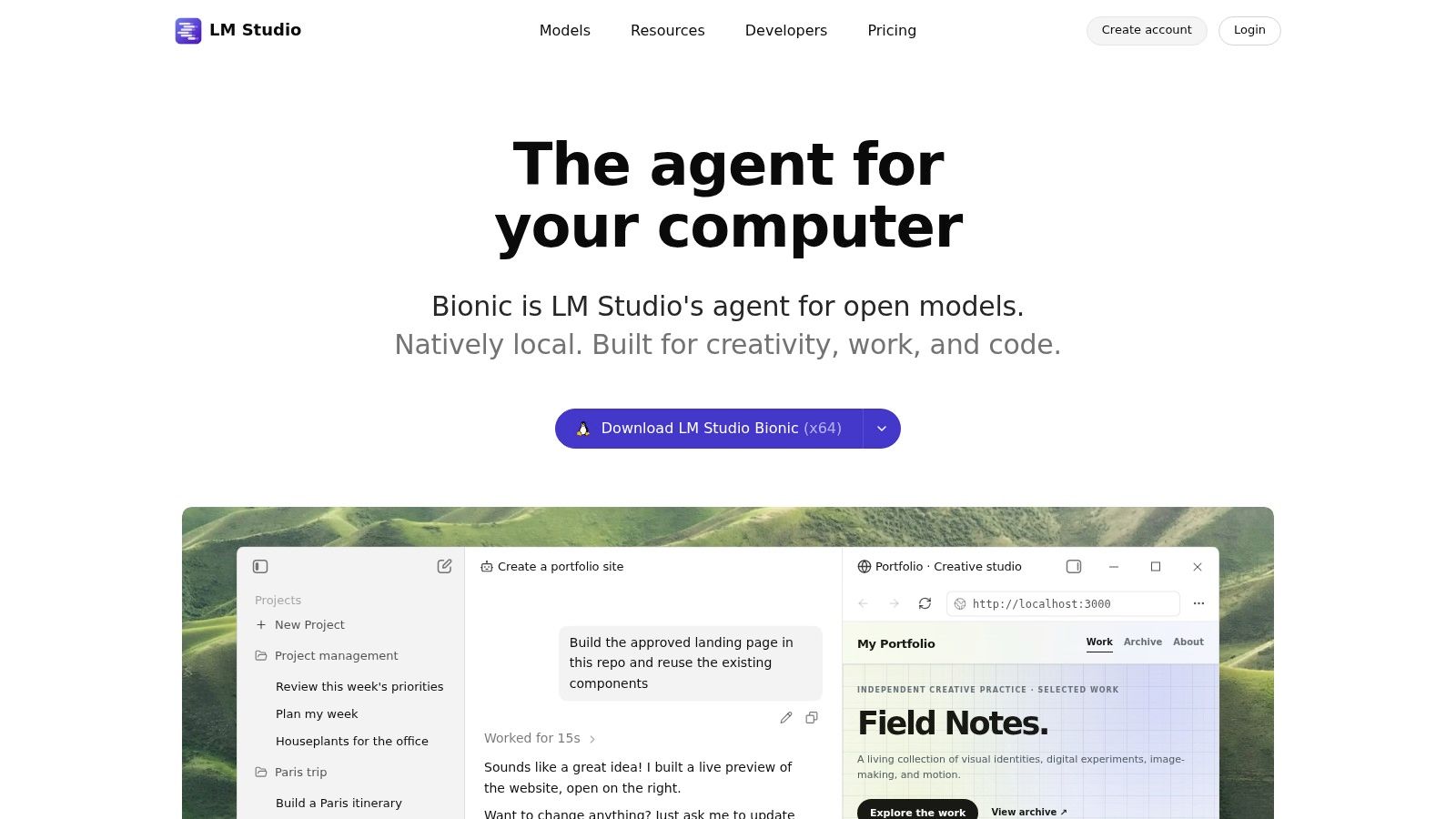
The fastest route from a bare machine to a working chat window is a desktop app, and LM Studio is the usual starting point. Search a model, download it, start typing. It puts discovery, download, and chat in one graphical interface, runs a local server with OpenAI-compatible APIs, and ships command-line and SDK tools. Both llama.cpp and MLX are supported, and on Apple Silicon the MLX builds are usually the quicker pick.
Speed is the part newcomers underestimate. Intel's white paper on decentralizing generative AI inference reports that roughly 20 to 30 tokens per second is satisfactory for real-world conversational use on suitable edge hardware. Below that, replies land in visible chunks and the conversation feels like waiting for a letter.
What to Expect from the Hardware
- Model size decides speed. A small model answers quickly and reasons shallowly. A large one flips that trade.
- Quantization buys memory. Four-bit weights fit where sixteen-bit weights won't, at some cost in quality.
- Context length eats memory too. A long chat history competes with the model itself for the same pool.
Two caveats. Some features can route work to optional cloud inference, so confirm the model you loaded is running locally. And individual models carry separate licenses, which matters if you plan to ship something. If the hardware question is still open, read the guide to what a local AI rig actually needs before buying anything.
2. Ollama
Ollama's product is a model runner, not a chat window. It downloads supported open models from a library, runs them on your hardware, and exposes an API that other software calls. That API is why it appears in so many developer stacks: point a code editor, a script, or a separate interface at it and the model behaves like any other endpoint. Local model use is free, and the command-line workflow stays scriptable.
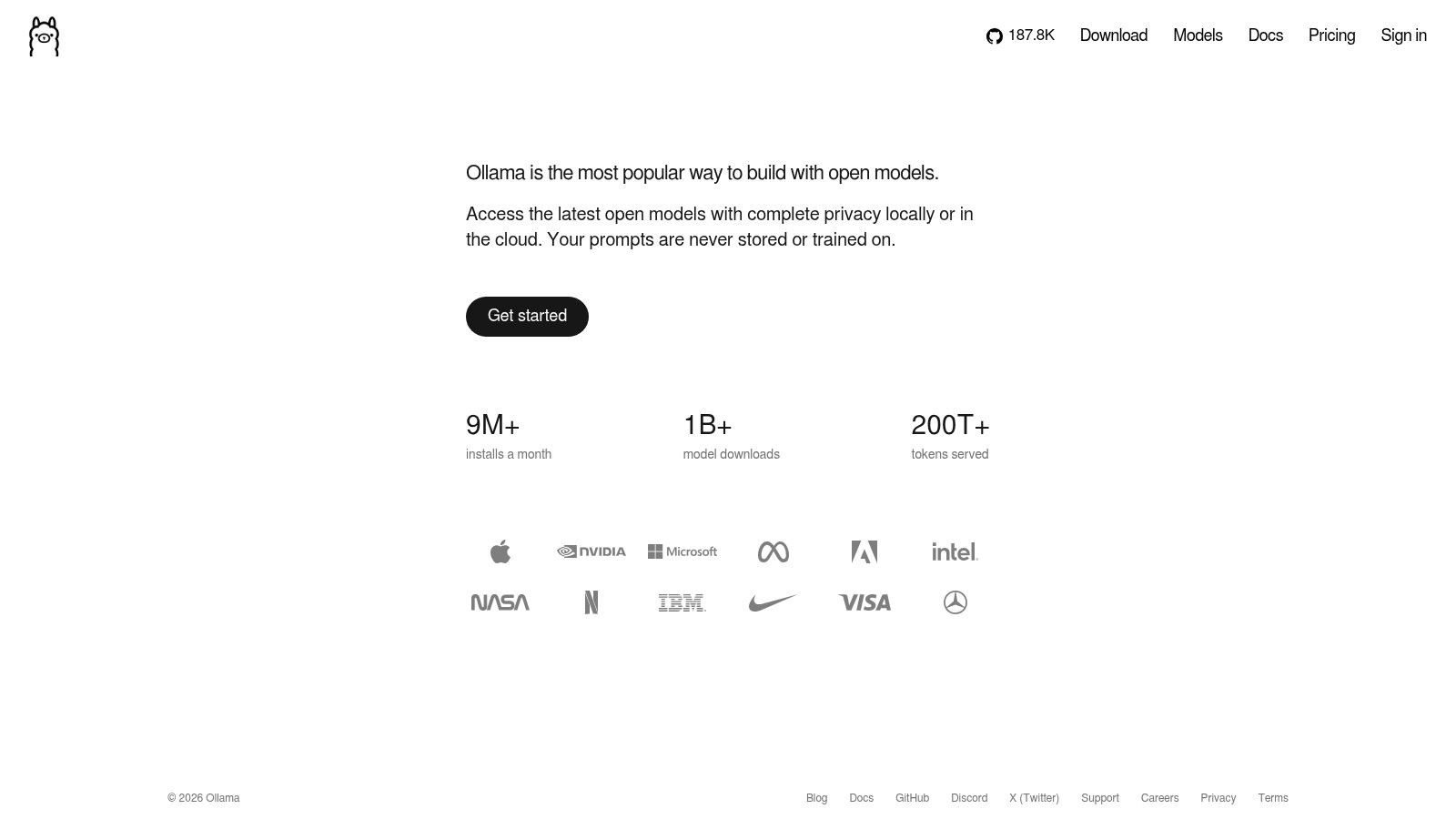
The trade-off is that a runner alone isn't a chatbot. You get a prompt loop, not conversation folders, document attachments, or a history panel. It's often paired with a front end, with Ollama as the engine underneath.
Pulling a model and chatting with it are two different jobs. The first takes a minute. The second is where the interface decision lands.
Newcomers hit the same wall twice. Model names read like code, and the library mixes sizes and quantizations that behave very differently on the same laptop. Start with one small model, confirm it answers, then move up a size. The other caution is cloud routing. Optional hosted features exist, so verify which path a request took before you send anything sensitive through it.
3. GPT4All
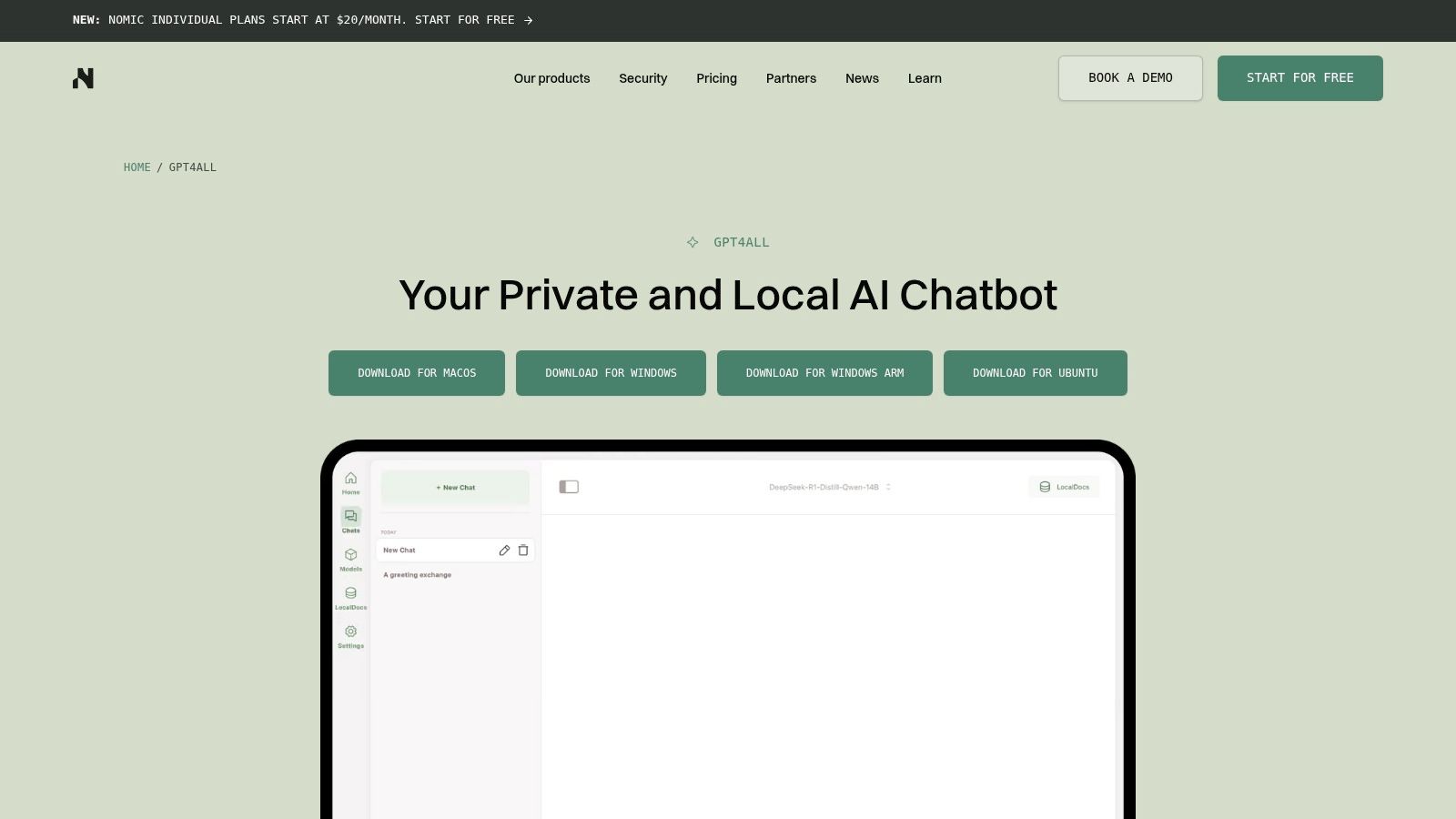
GPT4All suits a desktop setup built around asking questions about your own files. Its LocalDocs feature indexes folders on your machine, so you can query documents without uploading them to a service. The app is available for Windows, macOS, and Linux, and includes a local API server for compatible applications.
Expect a modest but real hardware requirement. GPT4All's official documentation describes support for Apple Silicon and compatible NVIDIA or AMD GPUs, and lists 8 GB of RAM and a CPU with AVX or AVX2 support. The app can run without an internet connection or cloud storage, keeping chats on your computer.
Where It Stalls
- File types matter. LocalDocs supports selected formats, not every document type. Check compatibility before building a workflow around it.
- CPU-only use works, but runs slowly. Longer waits can make repeated questions or large documents frustrating.
- You choose the model. GPT4All provides options, but you still need to match a model to your hardware and tasks.
Offline use means you manage the files and updates yourself. Download models and app updates while connected, and leave enough disk space for the model files you plan to keep.
4. Jan
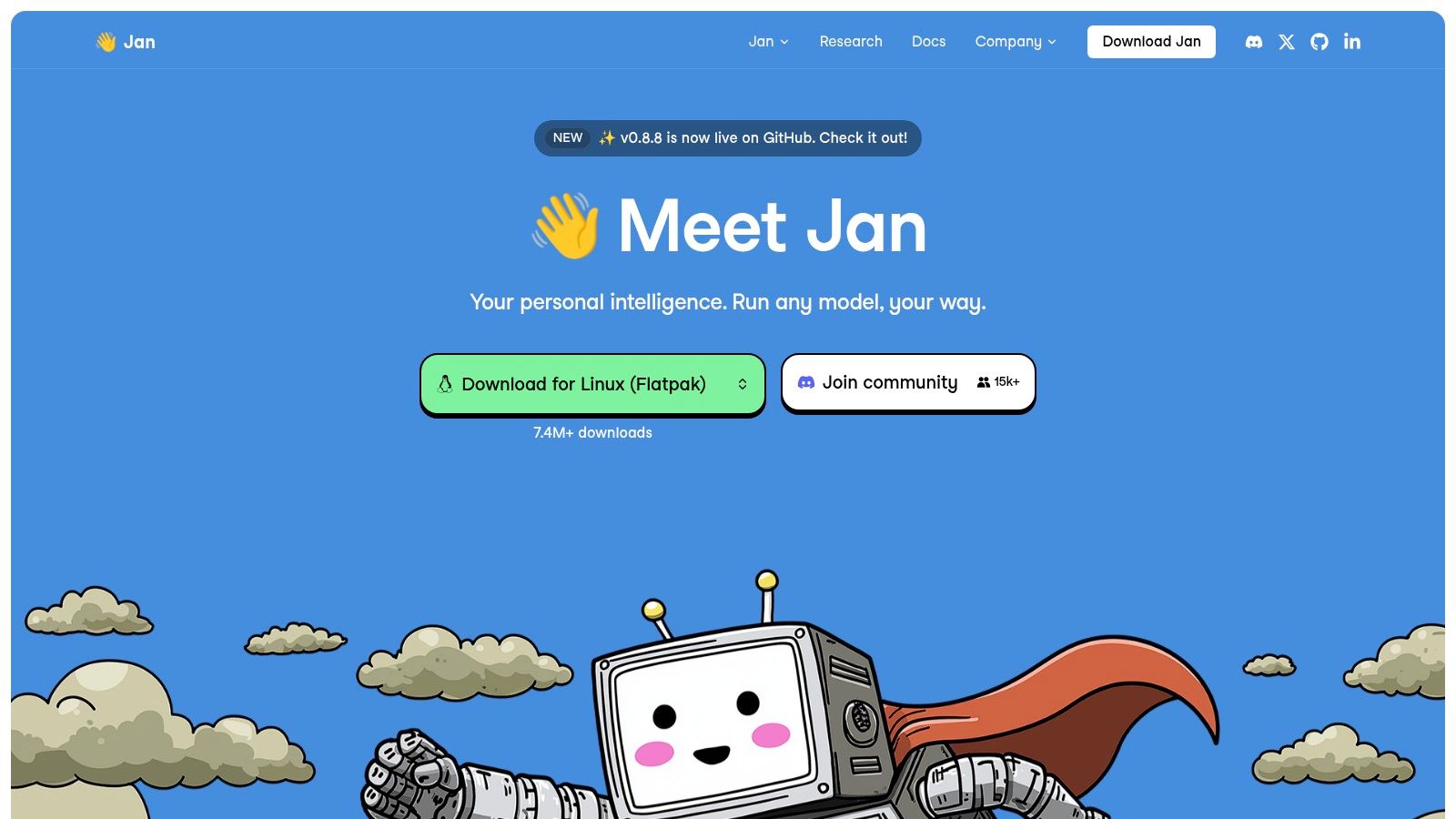
Jan takes the opposite approach to a stripped-down runner. It's an open-source desktop assistant with a model hub for finding and downloading models, plus projects, custom assistants, agents, and connectors, and an OpenAI-compatible local API server for other applications.
The Privacy Claim, Precisely
Privacy is usually the reason people look at it, and the honest version of that story is narrower than the marketing. Privacy Guides' notes on AI chat state that local models can keep data from leaving the device and avoid sharing it with third parties, which helps with private notes, source code, legal drafts, health information, or proprietary business data. The same page is clear that local processing doesn't remove every risk: chat logs, exported files, and the device itself still need protection through disk encryption and access controls.
The feature list is also the catch. Agents, connectors, and web search can reach outside the machine, and each one needs configuration plus a decision about whether it should be allowed to. Compatibility varies by operating system and hardware. For a first install, run plain chat with no connectors and add pieces once the base works.
5. AnythingLLM
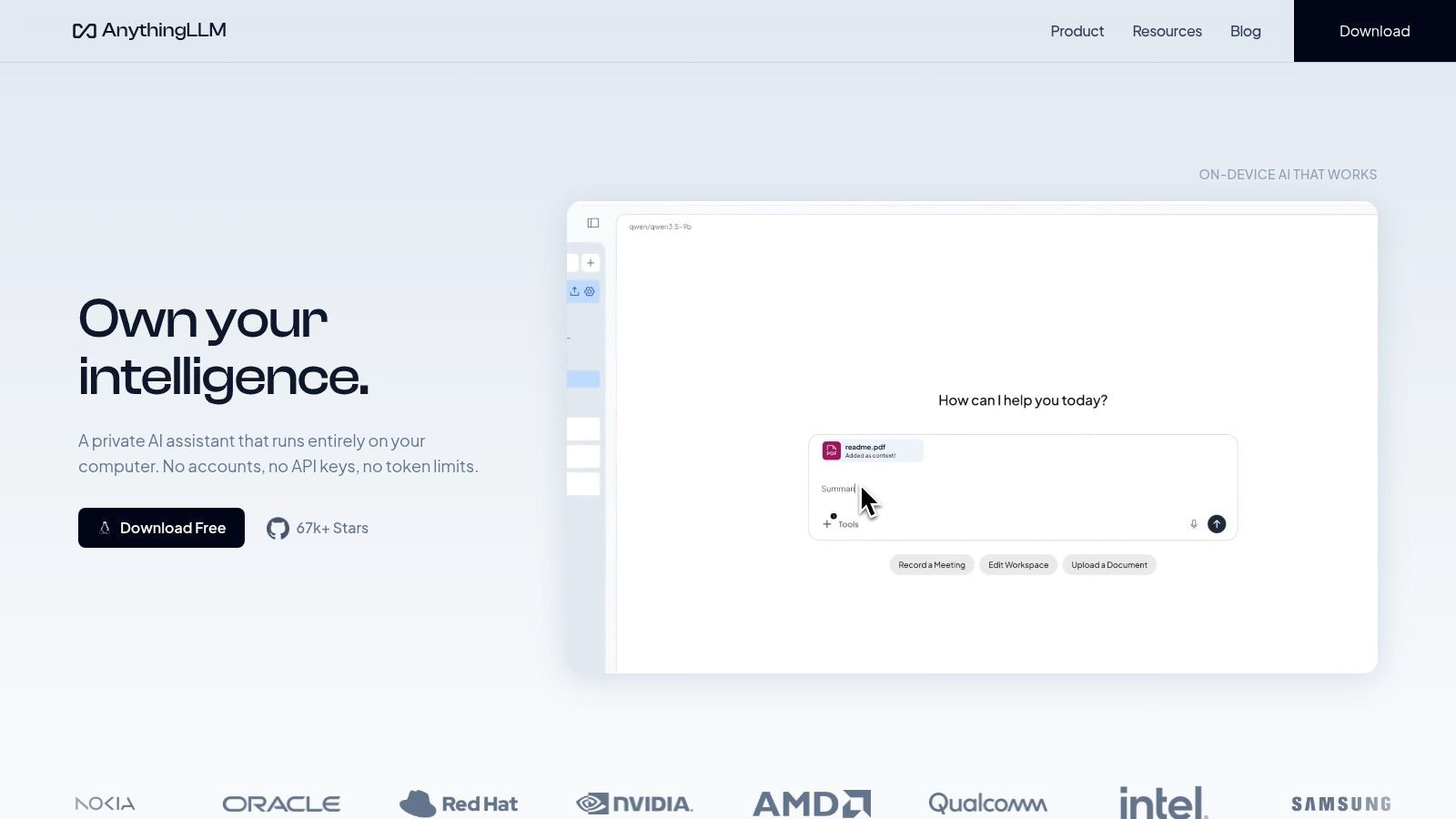
If your main task is asking questions about PDFs, notes, or code, AnythingLLM is built around that workflow. It organizes materials into workspaces and supports agents. The desktop build suits one person on one machine; Docker provides browser access and supports multi-user deployments.
A local model can limit how much sensitive material goes to an outside provider, but it does not make every part of the setup private. Chat history and logs remain on disk. Uploaded files and exports may be accessible to other applications. Connected search, agents, or external providers can send content outside the machine, and embedding settings affect where document text is stored.
Verification step: Disconnect the network, then ask a question about a local file. If AnythingLLM answers, the request did not need an outside connection.
Before indexing a folder, review what the retrieval layer stores and where it stores it. A RAG readiness checklist can help you identify the questions to resolve before adding documents.
6. Open WebUI
A local chatbot is usually three separate parts: a model, a runtime that serves it, and an interface you type into. Open WebUI is the third part. It's an open-source, self-hosted chat interface that connects to Ollama and other compatible providers, with Docker, Python, Kubernetes, and desktop installation options, and configuration for offline or air-gapped environments.
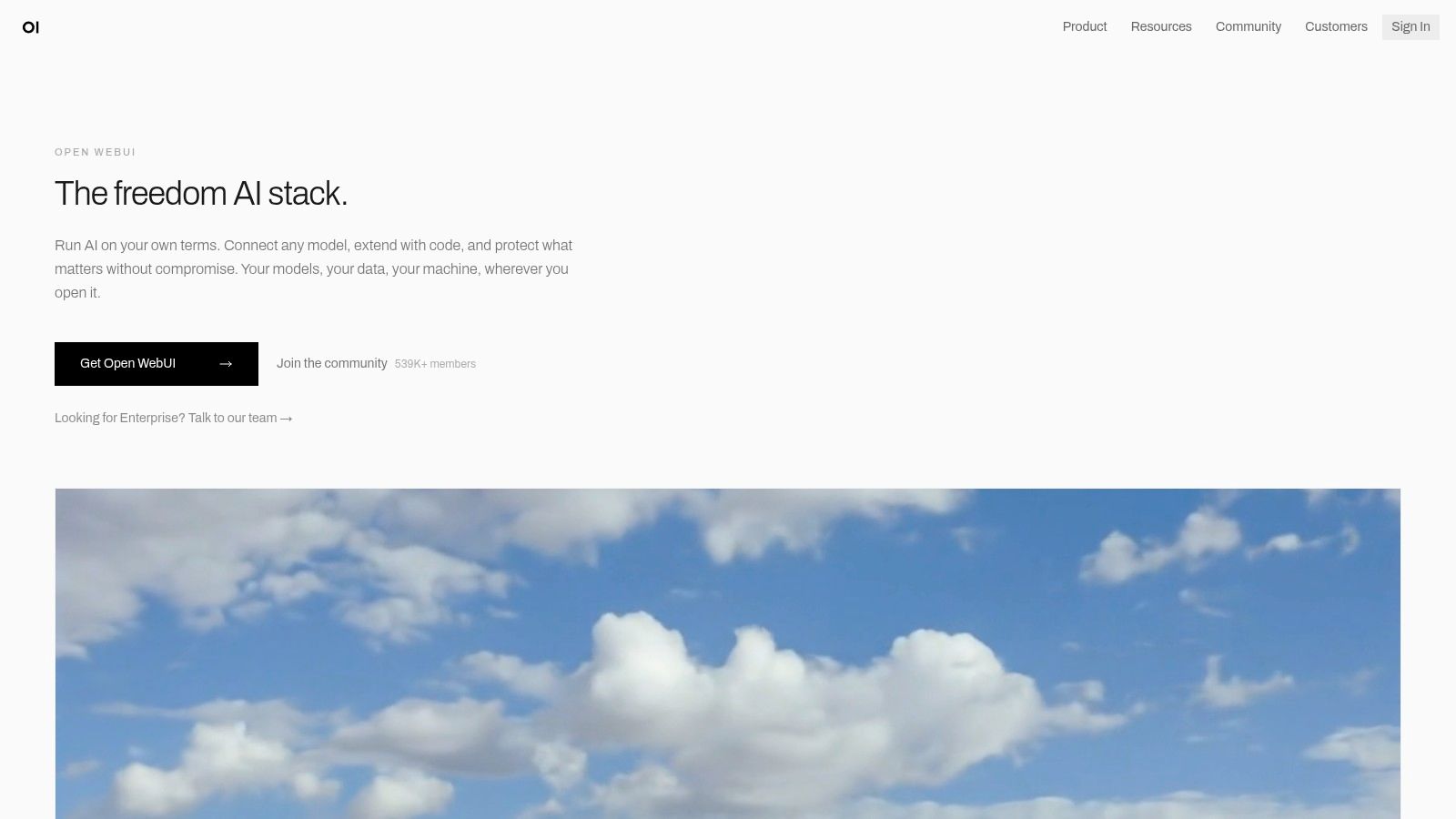
The split is the useful part. A walkthrough of a fully offline local LLM setup describes Ollama as a model-serving option that can provide an OpenAI-compatible API, with Open WebUI supplying the browser-based chat screen. The same model then works from a familiar window or from a script. What the split doesn't change is memory: the model still has to fit in system RAM or GPU memory for usable performance.
What the Interface Does Not Solve
- It isn't a model. Install it with nothing behind it and you have an empty chat box.
- Setup is real work. More steps than a desktop app, and a public instance needs authentication and TLS configured properly.
- It's a front door. Sessions, uploads, and API keys need review, not just the login page.
To see how this fits against other options, the AI chatbots and assistants directory groups tools by what they do.
7. LocalAI
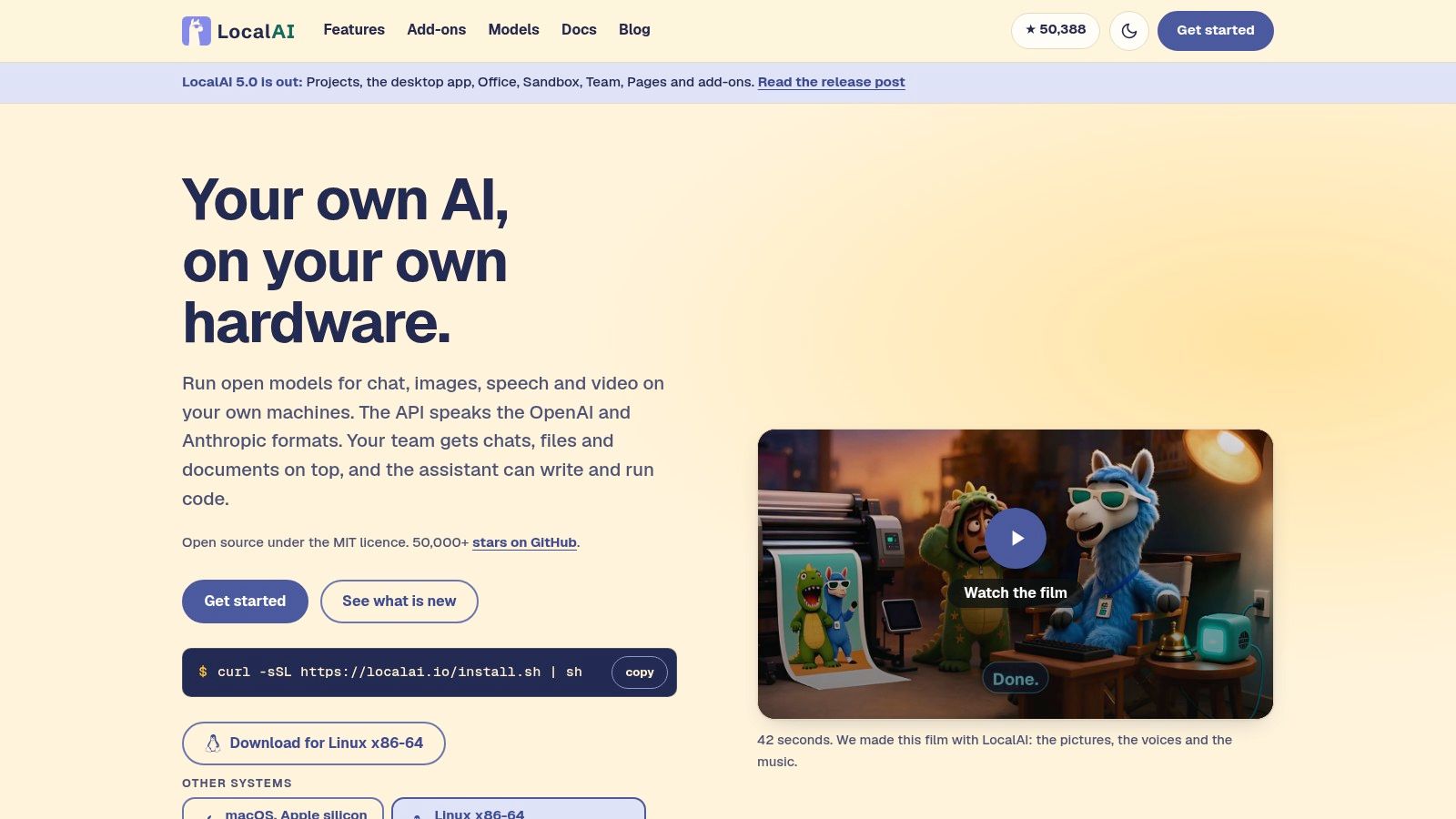
LocalAI is for the person who wants a platform rather than a chat product. It's open source and self-hosted, runs chat and other model types on local hardware, serves a web interface alongside OpenAI- and Anthropic-compatible API formats, supports agents, files, and document search, and works on CPU or several GPU types.
Cost is the stated reason for self-hosting, and the arithmetic is less friendly than it looks. An analysis of self-hosted inference costs estimates self-hosted inference on consumer Blackwell GPUs at roughly $0.001 to $0.04 per million tokens in electricity, potentially 40 to 200 times below budget cloud APIs. Those estimates exclude hardware, cooling, administration, and idle capacity. The same analysis notes that a high-end GPU's purchase price and market-price changes can alter the break-even point, while enterprise ownership carries substantial five-year infrastructure costs.
The practical version of the question comes down to three things.
- Sustained volume: a machine that's busy all day is where local wins.
- Occasional use: an API bills per token. Hardware bills once, whether you use it or not.
- Setup time: worth something, and rarely counted.
If the answer isn't obvious, the sensible deployment is a hybrid. Keep sensitive work on the local platform and route difficult requests elsewhere.
8. llamafile
llamafile packs model weights and runtime into a single executable. One file, no serving stack to assemble. It supports GGUF models, including the Llama, Mistral, Gemma, and Phi families, runs across several operating systems, and is built for local and offline use.
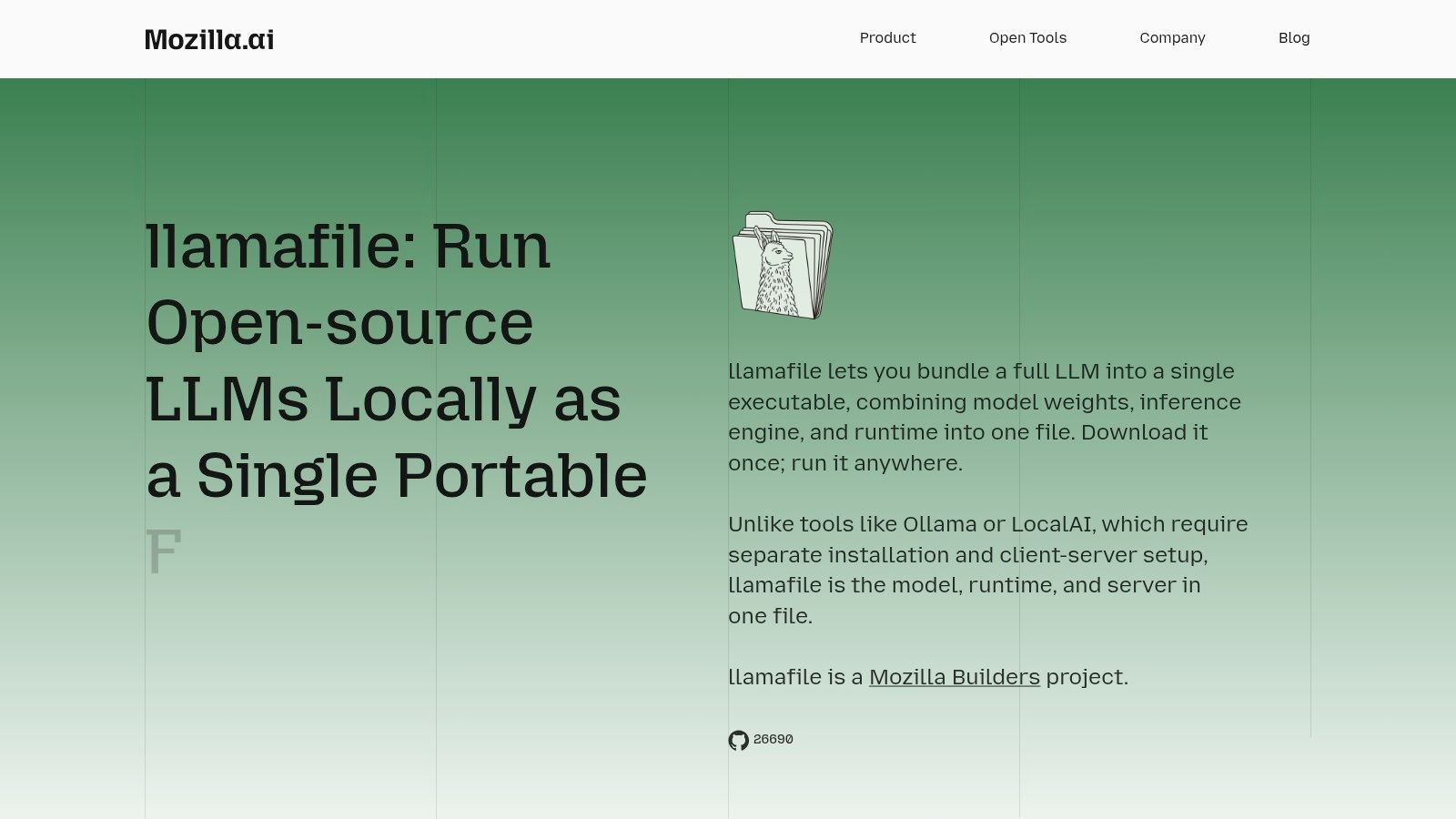
That packaging is the entire idea. A fixed model setup travels in one file, which suits experiments, demos, and handing a colleague the exact configuration you're running.
If the goal is "run this same model on any laptop in the room," one file beats an install guide.
It isn't a chatbot app. There's no workspace, no document index, no model browser. You pick the model, confirm your hardware can carry it, and run it. That's the friction point for beginners: the executable won't tell you whether it will work well on your RAM.
Treat llamafile as a delivery format rather than a daily driver. Choose and test your model in a desktop app first, learn what size your machine tolerates, then package that choice for other people.
9. Msty Studio
Msty Studio is a desktop workspace that brings local models and hosted providers into one application. If your week involves comparing a local model against a paid one on the same prompt, one window is easier than two.
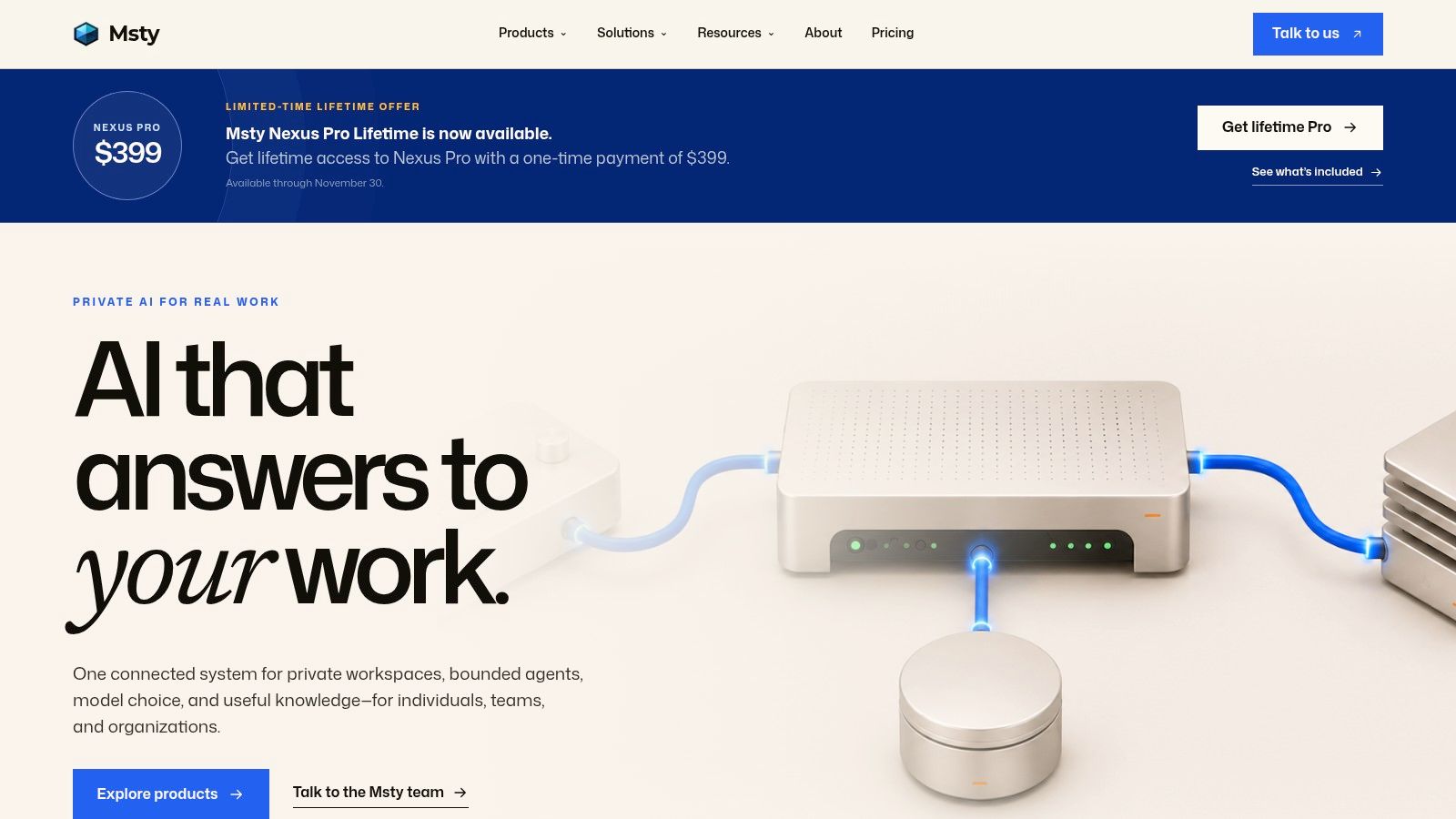
The thing to watch is what "local" means inside a shared interface. A provider-hosted model in the same app is not local inference. It sends your prompt to a server the way a browser tab does. Before you rely on it for confidential material, confirm which models are running on the machine.
Questions Worth Answering First
- Which models are actually local? Check whether the app downloads weights or calls an endpoint.
- What happens offline? Disconnect the network and test the workflow you care about.
- What's the current plan? Feature and pricing details shift between versions, so read them on the vendor's site rather than in a review.
For plain offline chat, the extra interface options are unnecessary. For someone already juggling several model sources, they're the point.
10. Ollama + Open WebUI
Two tools, one chatbot. Ollama downloads and runs the models. Open WebUI supplies the chat interface and connects to it. Both components are self-hosted, and the browser view can reach a machine elsewhere on the home network.
Speed is the argument for this pairing over a cloud tab. Qualcomm's developer testing of local model routing found a local Phi Silica chatbot response completing in slightly under 0.2 seconds, against approximately 2 seconds for an Azure OpenAI cloud response, roughly a tenfold latency advantage in that test scenario. That result shouldn't be generalized to every model or device, but it explains why local chat feels different in a desktop copilot, a document search tool, or a support triage queue.
The same write-up describes a routing pattern worth copying: keep sensitive prompts on-device and send less sensitive or more demanding requests to a cloud model. Building that means two code paths and a rule for choosing between them.
Production checklist: measure time-to-first-token, end-to-end latency, tokens per second, and accuracy on your own workload, not someone else's benchmark.
Two components also means two things to install, patch, and secure. Open the interface to other devices and network settings start to matter as much as model quality.
Local AI chatbot tools at a glance
| Tool | Setup difficulty | Runs locally | Best for |
|---|---|---|---|
| LM Studio | Easy | Yes, with optional cloud features | Desktop model discovery, local chat, and API access |
| Ollama | Moderate | Yes, with optional cloud features | Running local models and connecting them to other software |
| GPT4All | Easy | Yes | Desktop chat and private document-based questions |
| Jan | Easy to moderate | Yes, with optional provider connections | Local chat with projects, assistants, and agents |
| AnythingLLM | Moderate | Yes, or connect to external providers | Document chat and organized workspaces |
| Open WebUI | Moderate to advanced | Yes, with a connected local or self-hosted provider | Browser-based chat across compatible model providers |
| LocalAI | Advanced | Yes | Technical users building a broader self-hosted AI platform |
| llamafile | Moderate | Yes, designed for offline use | Portable, single-executable model deployments |
| Msty Studio | Easy to moderate | Yes, with hosted provider options | Working with local and hosted models in one desktop workspace |
| Ollama + Open WebUI | Moderate to advanced | Yes | A complete self-hosted setup with local models and browser-based chat |
Choosing Your Local AI Chatbot Setup
Choose a setup based on the job you need it to do. A desktop app is easier to start with, while a self-hosted stack gives you more control and more setup work.
A Practical Decision Path
- Easiest start: Choose LM Studio for a desktop chat window and local server in one install. GPT4All suits private questions about files on one laptop. Jan adds assistants and agents in the same app.
- Private file chat: AnythingLLM supports workspaces, document indexing, and a Docker path for multiple users. GPT4All's LocalDocs is simpler for one person working with a folder.
- Developer stack: Use Ollama as the model runner and add Open WebUI for browser-based chat. LocalAI fits setups that need more than text chat. Choose llamafile when you need a portable, single-file deployment.
- Mixed sources: Msty Studio can bring local and hosted models into one workspace. Check which models can run on your hardware before choosing one.
Hardware sets the ceiling. Match model size to available memory before downloading. Quantization can help a model fit, though it may reduce answer quality. Context length also uses memory, so long documents can slow a model that responds quickly to short prompts. If a response speed of about 20 to 30 tokens per second matters to you, budget for a smaller model or better hardware rather than hoping a big one fits.
Privacy depends on the setup. A local model can keep prompts on your machine, but connecting hosted providers changes where your data is processed. Check which provider a feature uses before sending sensitive files or prompts.
Pricing and plan details change, so check each vendor's site for current terms. A desktop feature may not be available in a hosted version, and a trial may not include ongoing free access.
AI Tool Seekers lists these tools with human-reviewed listings, editorial scores, and side-by-side comparisons. Its free tool finder and cost calculator can help narrow your options.
Every listing in the AI Tool Seekers directory is reviewed by a person and receives an Editor's Score based on capability, ease of use, value, and delivery against stated promises. Paid listings do not get better placement than free listings. Use the AI chatbots and assistants category to compare features, pricing, and scores before downloading.