Video Editing AI Tools Compared by Capability
Compare video editing AI tools by capability, from transcript cutting and captions to generative edits. Honest limits and use cases for each option.
You've got a 90-minute interview, a 12-minute training video, and a folder of raw clips that marketing wants cut into shorts by Friday. No single editor handles all three jobs well. Pick one that matches how you work and the other two become a grind.
That's the logic behind this list. It groups video editing AI options by capability instead of prestige: tools that cut speech from a transcript, tools that caption and localize, tools that finish a cut on a timeline, and tools that generate new visual versions of footage you already shot. The order is not a ranking.
The shift toward this work is measurable. In 2025, 41% of brands reported using AI for video creation, up from 18% in 2024, according to Wistia's 2025 State of Video Report.
Every description below comes from the vendor's own site and documentation. Plans, credits, and export limits change often, so confirm the current terms on the vendor's page before you commit.
Table of Contents
- Descript Review for Cutting Speech From a Transcript
- Runway for Generative Changes to Existing Footage
- Adobe Premiere Pro for Timeline Finishing
- Descript for Dialogue-Heavy Podcast and Interview Work
- Wondershare Filmora for General Desktop Editing
- CapCut for Short Social Cuts
- VEED for Browser Captions and Quick Edits
- DaVinci Resolve for Color, Audio and Finishing
- Invideo for AI Assistance on an Editable Timeline
- HeyGen for Presenter and Localized Video
- How the listed video editing AI tools differ by main capability and access
- Pick by the Job and Verify the Details Yourself
Descript Review for Cutting Speech From a Transcript
A long interview can be easier to edit as text than as a waveform. Descript puts the transcript above the timeline, so you can find and shape the spoken story without scrubbing through the entire recording.
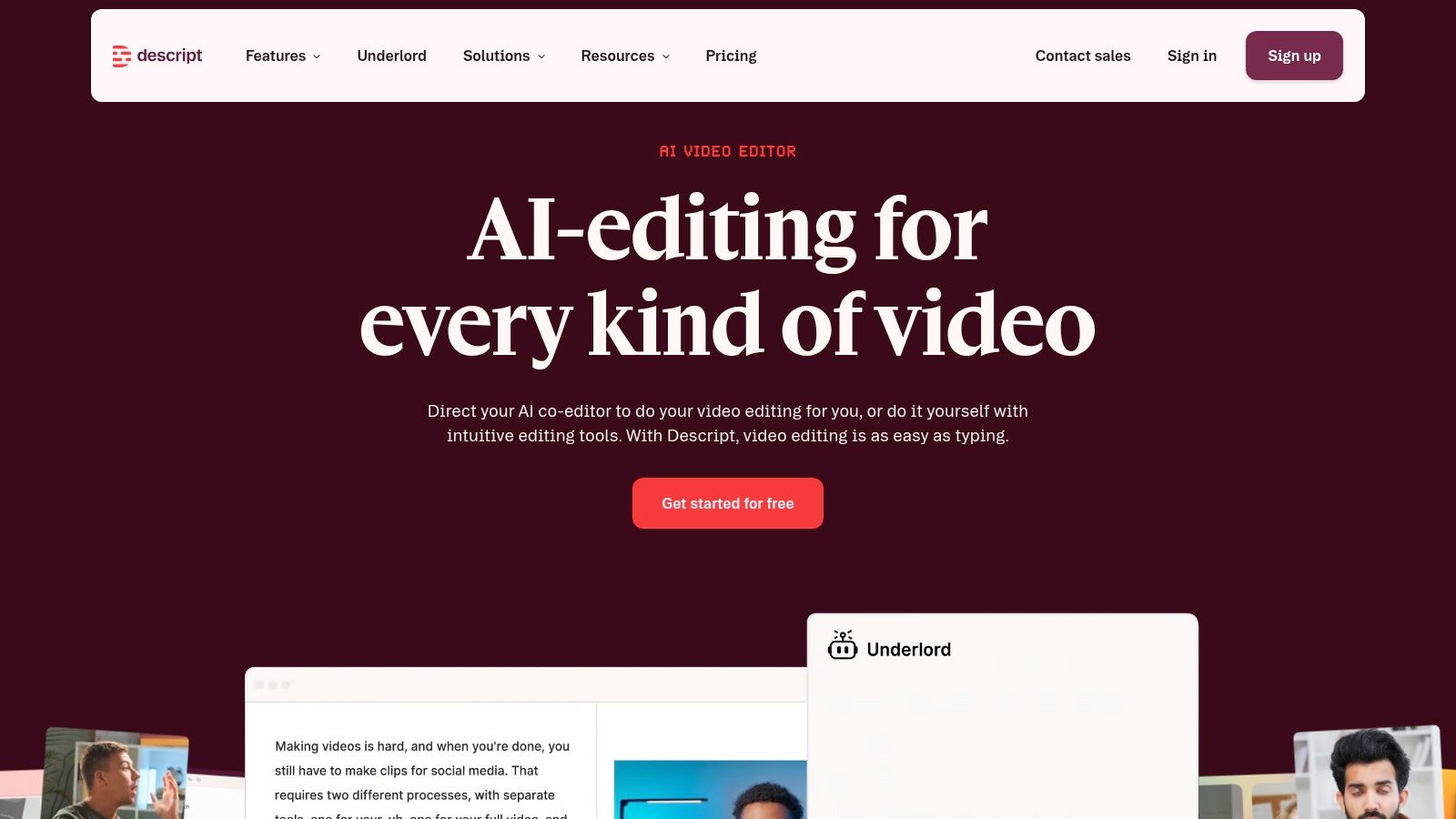
Delete a sentence from the transcript and its matching audio and video disappear. The AI co-editor can handle routine cleanup: remove filler words such as “um” and “uh” in bulk, or create short clips from a longer recording for social use.
In a November 2024 survey of more than 500 B2B marketers, 42% reported using AI for transcription and captioning, and more than 40% said AI saved them at least three hours on editing or creating video, according to Morphed's AI video marketing statistics. For dialogue-heavy work, transcript editing can reduce the time spent locating and cutting spoken passages.
Where it wins and where it stalls
Descript suits podcasts, interviews, training modules, webinars, and talking-head explainers. Its strength is editing the words; it is less suited to work where visual pacing, effects, or detailed color decisions drive the cut.
Advanced color grading, layered compositing, and frame-accurate effect animation call for a different editor. Editors who need hands-on control over every keyframe may also find transcript-based editing indirect.
Practical rule: Shape the dialogue in Descript, then use a timeline editor for finishing when the project needs precise transitions or sound design.
Transcript revisions make spoken passages easier to find than timeline searching, especially in longer recordings. Automatic clipping can turn one recording into several short pieces, though each still needs a review for context and pacing. A visible transcript makes it easier to track which words were removed. The trade-off is depth: complex effects and detailed color work belong elsewhere.
Check the vendor's Descript platform for current plans and allowances. An evidence-based look at Descript examines its accuracy on interview material.
Runway for Generative Changes to Existing Footage
Runway's Edit Studio does something different from transcript editing. It changes what's already in the frame.
Feed it a clip and a plain instruction, and it can replace a background, adjust lighting, or change an object across a sequence, including across cuts. You preview the change on a reference frame before committing the generation, which is the only sane way to work with a model that interprets instructions loosely.
This is the narrowest, fastest-moving category in video editing AI. An Adobe creators survey of more than 16,000 digital creators across eight countries found that 86% actively use creative generative AI, with 52% citing generation of new image or video assets. Editing, upscaling, and enhancement drew 55%, so the enhancement side is already the wider use.
Provenance is the part people skip
Generated and altered footage creates a records problem. Google's Content Credentials documentation explains that hidden digital labels inside supported files can identify the software used to generate or modify media and describe its origin and history. It also states plainly that credentials cannot by themselves determine whether media is real or fake. They give viewers evidence to weigh, not a verdict.
Prompt-based changes suit alternate versions of the same shot: a daytime scene turned to dusk, a cluttered background cleaned up, a product recolored for a second market.
Sequence-wide edits save reshooting when a client changes direction late.
Reference-frame previews let you reject a bad generation before it costs credits.
Limits matter. Edit Studio and the Aleph 2.0 editing features require a paid plan, generation is credit-based and the cost varies by model and task, and AI changes routinely need correction by hand. A free account exists for exploring eligible tools, which is a trial of the workflow rather than a production plan.
Adobe Premiere Pro for Timeline Finishing
Premiere Pro isn't a prompt-to-video machine, and that's the point. It's a desktop editor where AI assists specific tasks inside a timeline you still control.
The strongest additions are masking tools. Object Mask generates a tracked mask around a moving person or object from a hover and click, with overlays, feathering, and lasso correction. Redesigned shape masks track faster than earlier versions, and Generative Extend adds frames to a clip when a shot ends a beat too early. Integration with After Effects, Photoshop, and Frame.io keeps the rest of a production inside one ecosystem.
Autonomy is the wrong expectation. On Timeline-Bench research, a benchmark of 56 realistic tasks that turn raw production material into finished edits, the strongest reported system completed 15 tasks, or 26.8%, and human editors preferred the benchmark reference edit in 83.5% of comparisons. Treat agent-style editing as a research result, not a replacement for an editor.
What to evaluate before buying
Test the tasks you do. Look for mask tracking accuracy on fast motion, how long a correction takes after a bad track, and whether the AI edits survive a round trip to After Effects.
Skip the demo reel. A single impressive clip tells you nothing about whether the tool holds up across a 40-shot sequence with mixed footage.
Creative control stays with the editor, which is why finishing work belongs here.
Ecosystem fit rewards teams already paying for Adobe software.
The learning curve is real, and the subscription is ongoing.
It remains hands-on work. Nothing in this editor removes the need to review a cut, check a mask edge, and listen to the mix.
Descript for Dialogue-Heavy Podcast and Interview Work
Descript returns here for a different reason: plan mechanics and data handling, the two things that decide whether a transcript-first tool survives contact with client work.
The free tier is a trial, not a workflow. Free exports come out at 720p with a watermark, and paid plans carry media-hour and AI-credit allowances that determine how much finished audio and video you can produce each month. Higher tiers add 4K export and more AI capability. All of that is on the Descript site, and the numbers change, so read the current plan page rather than a comparison post.
Data handling deserves equal attention. A 2025 Adobe creators survey of more than 16,000 creators across eight countries found that 69% were concerned about their content being used to train AI without permission. For anyone editing footage owned by a client, that concern is a procurement question, not a preference.
Questions worth asking the vendor page
Read the terms for whether uploaded media is used for model training, how long files are retained, and whether you can delete a project and have it removed. Check whether project files export in a form you can reopen elsewhere.
Studio Sound and filler-word removal cut hours from dialogue cleanup.
Recording, editing, and sharing in one application removes a handoff.
Transcript editing makes a two-hour interview navigable in minutes.
The limits are visual: complex effects and detailed cinematic grading sit outside its range.
If the project is narrative rather than interview-led, storytelling with AI covers how structure changes when the transcript drives the cut.
Wondershare Filmora for General Desktop Editing
Filmora sits in the middle of the market. It's a conventional timeline editor for Windows and Mac with AI helpers added where they save time, and it sells to people who want one application for everything.
Automated cutting has already become routine work. In 2025, 43% of surveyed B2B marketers reported using AI for automated video editing, according to Goldcast's 2025 State of AI in B2B Video report.
What it covers
Effects, transitions, titles, and audio tools sit alongside AI-assisted features for cleanup, reframing, and quick assembly. The Filmora product page lists the current feature set and the add-ons that sit outside the base editor.
One purchase, two models. Annual and perpetual options exist, and they differ in updates and included extras.
Desktop performance suits long projects better than a browser tab.
General-purpose scope means you can finish a corporate video without switching apps.
The catch is fragmentation. Some AI features and asset packs need add-ons, credits, or specific plan terms, so the sticker price isn't the working price. A perpetual license isn't the same product as a subscription, and the difference shows up in updates a year later. Browser-only workflows lose the convenience of a shared link.
CapCut for Short Social Cuts
If the deliverable is a vertical clip under 60 seconds, CapCut's defaults are built for it. Templates, effects, and ready-made assets shorten the distance between raw footage and a postable cut.
Automatic first passes are becoming standard across the category. Captions AI's AI Edit feature adds captions, transitions, B-roll, music, and motion graphics to a project, and each added element stays editable or deletable in the timeline, per Captions AI's AI Edit documentation. That's the model to expect: automation that proposes, a human that disposes.
Disclosure catches people out
Social-first tools make it easy to publish altered footage without thinking about labeling. YouTube's altered content policy requires creators to disclose realistic content generated or altered with AI video, image, or audio tools, including partly altered material. It also lists routine production help that generally doesn't need disclosure, such as captions, video sharpening, upscaling, repair, and script or thumbnail work.
Vertical formats and safe-area guides are native rather than bolted on.
Smart color correction on desktop covers the most common fix without a grade.
Templates cut design time when the format matters more than originality.
Limits: some features, effects, and export options sit behind Pro, the feature set and pricing differ by device and region, and template-driven editing constrains the look. Students building a first portfolio should start with free AI tools for students before paying for a plan. The CapCut site carries current platform details.
VEED for Browser Captions and Quick Edits
For a talking-head clip that needs captions, a tighter cut, and cleaner audio, VEED keeps the work in a browser editor. It suits quick social and marketing videos where fast turnaround matters more than detailed timeline control.
What the browser editor covers
The editor puts trimming, cropping, resizing, text, and music alongside transcript-based editing and Auto Edits. Auto Edits can combine subtitles, audio cleanup, and B-roll in one pass. VEED also offers AI video generation features on its website.
No installation makes it easier to share a review link with a client.
Transcript editing lets you remove a spoken sentence by deleting its line.
Auto Edits can produce a first draft of a social clip quickly.
Check captions and edits against the original before publishing. Free exports carry a watermark and are capped at 720p, while several AI features are limited on the free plan. A browser editor is better suited to short, straightforward work than a long, multi-camera project. Use free access to see whether the workflow fits before committing.
DaVinci Resolve for Color, Audio and Finishing
Resolve is the answer when the job is finishing: color, sound, effects, and motion graphics in one application rather than four.
The free edition is unusually complete. It supports editing up to Ultra HD 3840 × 2160 at up to 60 fps, which covers most delivery specs without a license. The paid Studio version adds AI features including text-based editing and Magic Mask, and it's listed as a one-time purchase rather than a subscription. Versions run on Mac, Windows, and Linux, per Blackmagic Design's Resolve page.
The trade-off is time. A broad toolset with a node-based color page and a full audio page rewards study and punishes improvisation.
Where it fits and where it doesn't
Choose Resolve for projects where color accuracy, audio mixing, or finishing quality is the deliverable. Brand films, documentary, product launches, and anything that will be graded shot by shot belong here.
Choose something else when the job is fast social output, when the team has no one who knows the color page, or when the machine is modest. Several of the highlighted AI features are Studio-only, and complex projects want a capable computer.
Free tier depth means a small team can finish professional work at no license cost.
Integrated workflow removes round trips between edit, color, and audio apps.
One-time Studio purchase avoids a recurring fee.
Learning investment is the main cost.
Invideo for AI Assistance on an Editable Timeline
A rough interview edit often needs both automation and hands-on correction. Invideo pairs a multitrack timeline with an AI assistant that responds to plain-language instructions, so you can use AI for repetitive edits and then adjust the result yourself.
The assistant can help find selects and cut silences. If the project needs further work, it can also be exported for Premiere Pro, Final Cut Pro, or DaVinci Resolve. That makes Invideo a practical option when AI is one part of the editing process, rather than the whole workflow.
What to watch
Assistant editing and generative features use credits, so check the plan before starting a project with heavy AI use. Invideo separates AI creation from AI editing, and you'll want to choose the right workflow for your job. Team features require a Team or Enterprise plan. Free manual editing lets you try the timeline; the Invideo site lists current plan terms.
Timeline control lets you move or refine an automated cut.
Silence removal can reduce repetitive cleanup on interview footage.
Project exports let you continue editing in another application.
HeyGen for Presenter and Localized Video
If a presenter needs to deliver the same update in several languages, HeyGen can turn a script into an avatar-led video without a new filming session. Its tools also include transcript-based trimming, captions, background changes, and resizing. Translation and voice options support multilingual versions, as described on the HeyGen site.
Check the language list first
Caption and translation support varies by language. Check HeyGen's supported languages documentation before building a workflow around a particular audience. If the required language or feature is not supported, you may need another tool or a separate production step.
Avatar production suits training and onboarding updates when filming is impractical. Localization creates language versions from one script. Format resizing adapts a source video for square, vertical, or widescreen use.
HeyGen is more specialized than a general-purpose editor. Free videos are limited and watermarked, so treat the free tier as a trial. Check credit allowances and output limits before relying on it for frequent production.
How the listed video editing AI tools differ by main capability and access
| Tool | Main capability | Editing approach | Free option | Best for |
|---|---|---|---|---|
| Descript | Speech-focused audio and video editing with AI tools | Edit a transcript, with AI assistance for routine tasks and clip creation | Free tier; exports are limited to 720p and watermarked | Podcasts, training videos, and repurposing long recordings |
| Runway | Prompt-directed visual changes to existing footage | Apply AI edits to objects, backgrounds, lighting, or style across shots | Free account for exploring eligible tools | Creating alternate versions of footage without reshooting |
| Adobe Premiere Pro | Professional video editing with selected AI tools | Hands-on timeline editing with AI-assisted tasks | No free option; subscription required | Editors seeking detailed control and Adobe app integration |
| Descript | Audio and video editing for spoken content | Edit recordings by changing the transcript | Free access; exports are limited to 720p and watermarked | Podcasts, interviews, tutorials, and talking-head videos |
| Wondershare Filmora | General-purpose desktop video editing with AI features | Conventional timeline editing with effects and AI-assisted tools | Free trial with watermarked exports | Creators seeking an all-purpose desktop editor |
| CapCut | Short-form and social video editing | Use templates, effects, and editing tools on desktop or mobile | Free access to basic editing | Quickly producing short social videos |
| VEED | Browser-based editing with captions and AI tools | Edit online using a timeline and transcript-based tools | Free access; exports are limited to 720p and watermarked | Creators and teams making captioned informational or social videos |
| DaVinci Resolve | Editing, color, effects, motion graphics, and audio | Desktop post-production workflow with detailed manual controls | Substantial free edition; advanced AI features require Studio | Projects needing detailed color and audio work |
| Invideo | Browser-based editing with AI assistance | Combine plain-language assistance with a manual multitrack timeline | Free manual editing | Users who want AI help while retaining timeline control |
| HeyGen | AI avatar videos and multilingual localization | Create script-led presenter videos, then trim and customize them | Limited free trial; videos are watermarked | Training, marketing, and multilingual business content |
Pick by the Job and Verify the Details Yourself
Choose based on the work in front of you. For a long interview with several usable answers, transcript-based editing can speed up the first cut. A presenter video in multiple languages may suit an avatar tool. For a brand film that needs careful shot-by-shot grading, Resolve or Premiere provide detailed timeline controls, with AI assisting rather than making the final decisions.
Before committing, check the terms that affect the job:
Plan limits. Media hours, credits, export resolution, and watermarks shape the usable value of a plan. Check the vendor's current terms, since they can change.
Data handling. For client footage, check whether uploads may be used for training, how long files are retained, and whether you can delete them.
Language support. Confirm that the tool supports your target languages. Captions can need correction for accents, code-switching, and names.
Disclosure rules. Realistic altered footage may require a label on the platform where you publish it. Check that platform's rules and keep a record of edits.
Free access often has limits, so treat it as a way to assess a workflow before relying on it. Review AI-generated edits before publishing and include correction time in your production budget.
For complex projects, keep a human responsible for the final cut. Automation can help with selects, silence removal, captions, and first-pass assembly, while detailed timeline work still requires review.
AI Tool Seekers has a video editing category where you can compare listings with their Editor's Scores, pros and cons, and side-by-side pricing and features. Each score covers capability, ease of use, value, and delivery, and the team updates scores as tools change. The scores reflect editorial opinion, not professional advice.
Choose a listing by the job you need done, then check its current plan terms before you commit.